SWSO Stream Studio app icon

New · screen & camera recording

Record your screen and your camera. Scene by scene.

SWSO Stream Studio by Streetwise Software Online · SWSO

Build the picture you want — a screen, one window, your camera, a logo, a title, a countdown — then click between scenes while you record and it all lands in one file. Green-screen keying on the camera, round and rounded masks with soft shadows, and your microphone and the Mac's own sound recorded with it. Opens in the On Air Red theme, with 11 more to choose from.

$19.99 one-time purchase · 7-day free trial

Mac • macOS 14 or later • records to a file (going live is coming next) • 7-day free trial

macOSavailableWindowscomingMobilecoming soon
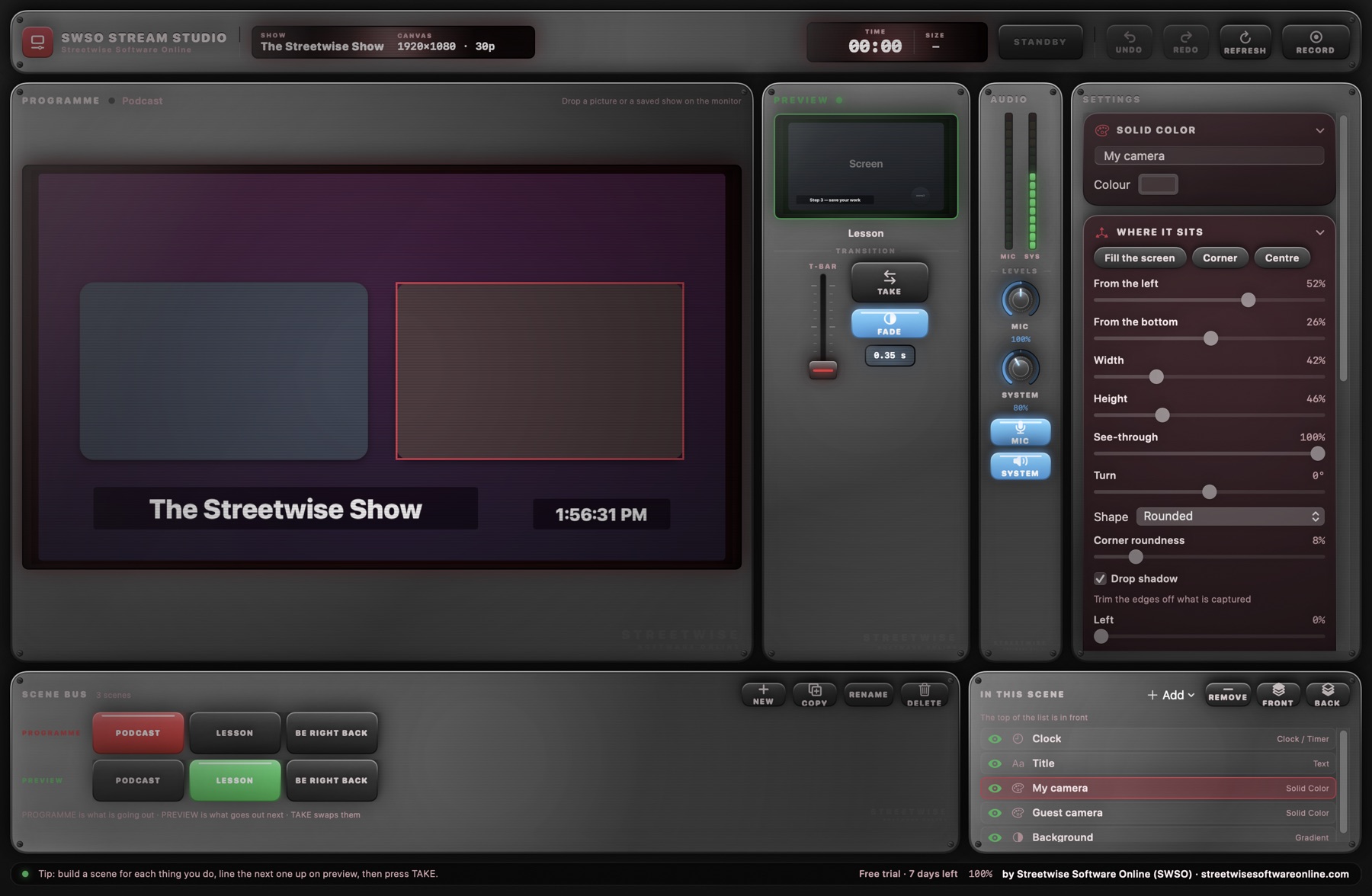
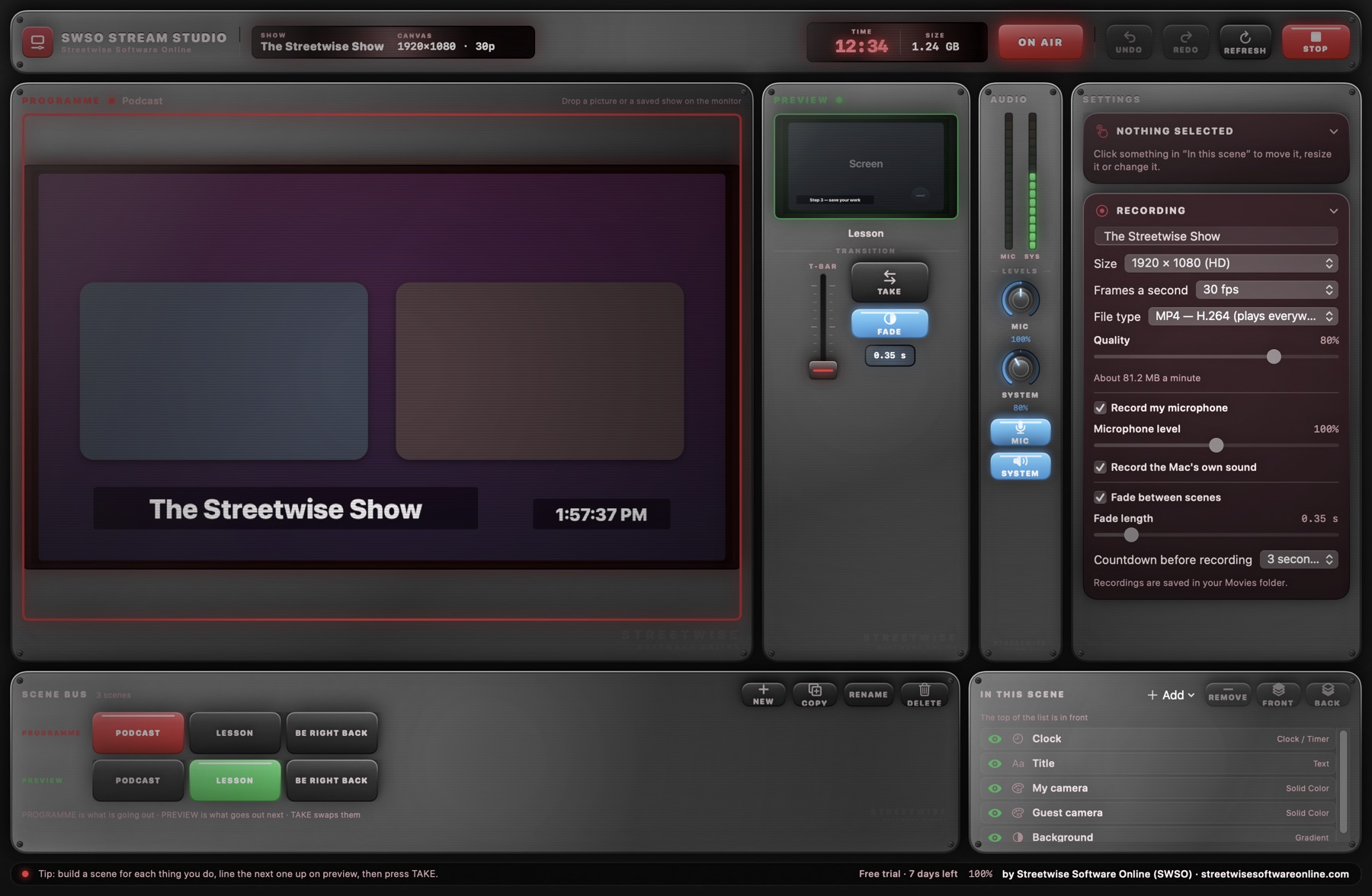
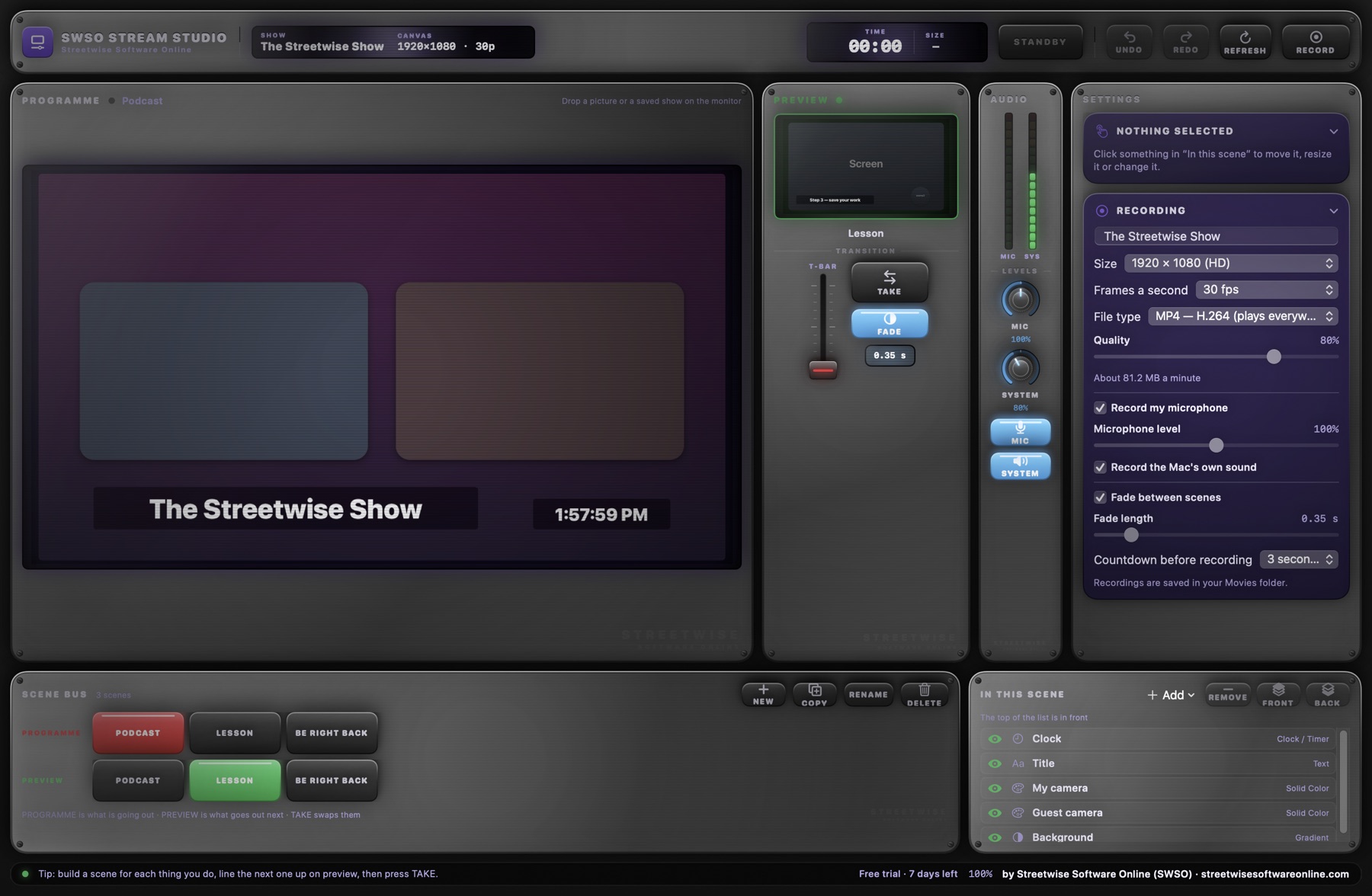
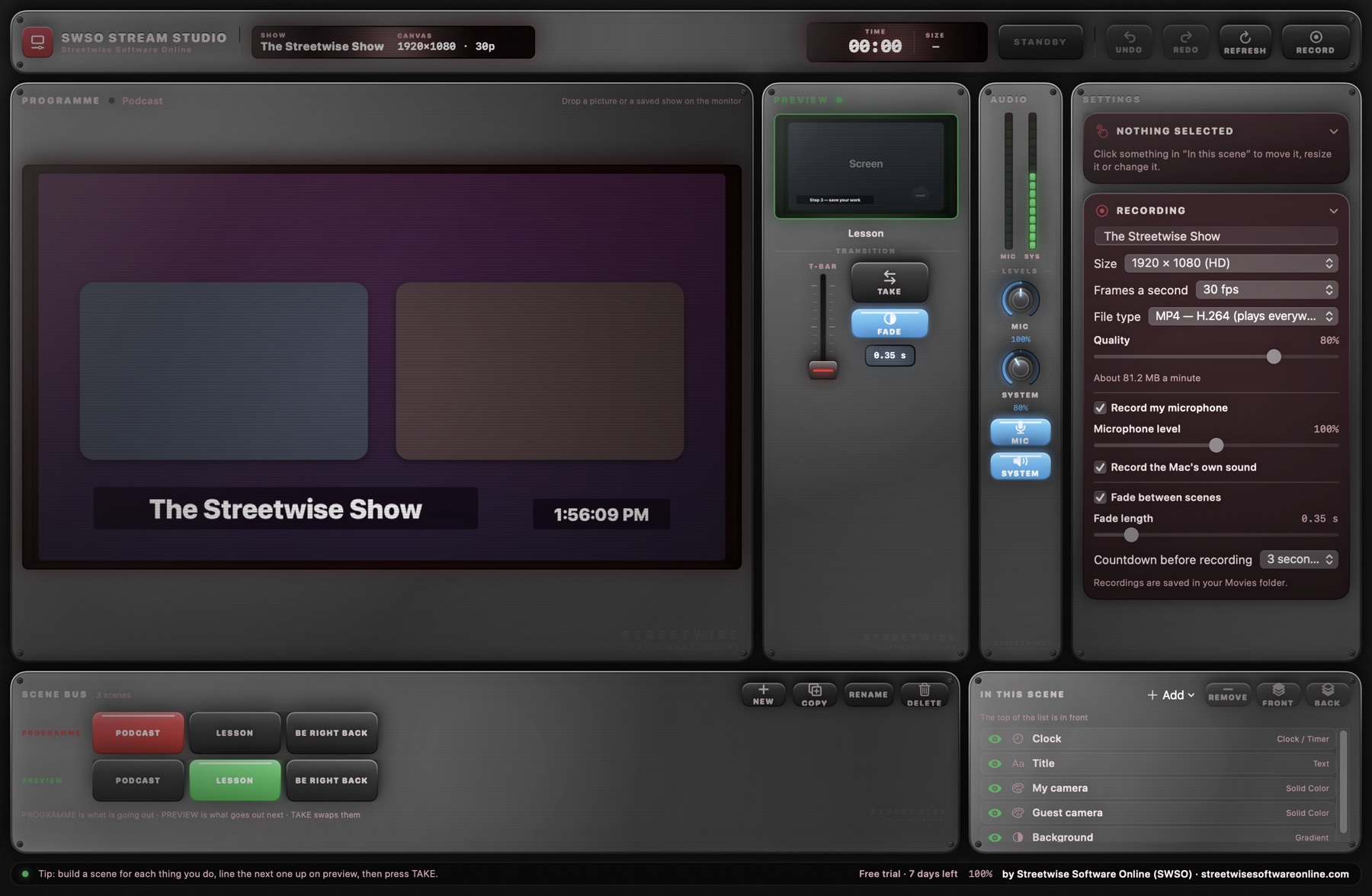
SWSO Stream Studio showing a podcast scene with two camera boxes, a title bar and a clock, and the recording settings on the right
8 kinds of sourcescreen, one window, camera, picture, colour, gradient, text, clock/timer
Scenes, liveswitch while recording, with a crossfade if you want one
Up to 4K1080p, 720p, 4K, vertical or square · 24, 25, 30 or 60 fps

What you get

Build the picture

  • Put in a whole Screen, One Window (even if something covers it), your Camera, a Picture, a Solid Colour, a Gradient, Text, or a Clock / Timer
  • Layer them: whatever is at the top of the list is drawn in front
  • Move and size everything in percentages, so a layout still works if you change the recording size
  • Trim the edges off what is captured — handy for cropping a browser's toolbars away

Make it look right

  • Round or rounded-corner masks, with an optional drop shadow — the classic camera bubble in one click
  • See-through and turn, for overlays set at an angle
  • “Knock out my green screen” keys a green or blue screen out from behind you on the camera, with strength and edge-softness
  • “Mirror me” flips the camera so it behaves like a mirror

Scenes you switch live

  • A new show starts with three: Screen, Screen + Camera, and Be Right Back
  • Add, duplicate, rename or delete scenes; click one and the picture changes straight away
  • Fade between scenes makes it a smooth crossfade instead of a hard cut
  • Save a whole set-up as a .swshow file — one for the podcast, another for the lessons

Record it properly

  • MP4 H.264 (plays everywhere), MP4 HEVC (smaller) or MOV ProRes 422 (for editing)
  • 1920×1080, 1280×720, 4K 3840×2160, vertical 1080×1920 or square 1080×1080, at 24, 25, 30 or 60 fps
  • Your microphone with its own level and meter, and the Mac's own sound alongside a Screen source
  • A countdown before it starts, a timer and file size while it runs, and the file waiting in your Movies folder

How it works

Nothing to install alongside it and nothing to sign up for. Lay out a scene, press Record, and the file lands in your Movies folder when you stop.

  1. Lay out a scenePick a scene on the left and use Add to put a screen, a window, your camera, a picture, some text or a clock into it. Click a thing in “In this scene” and move, size, crop or mask it on the right.
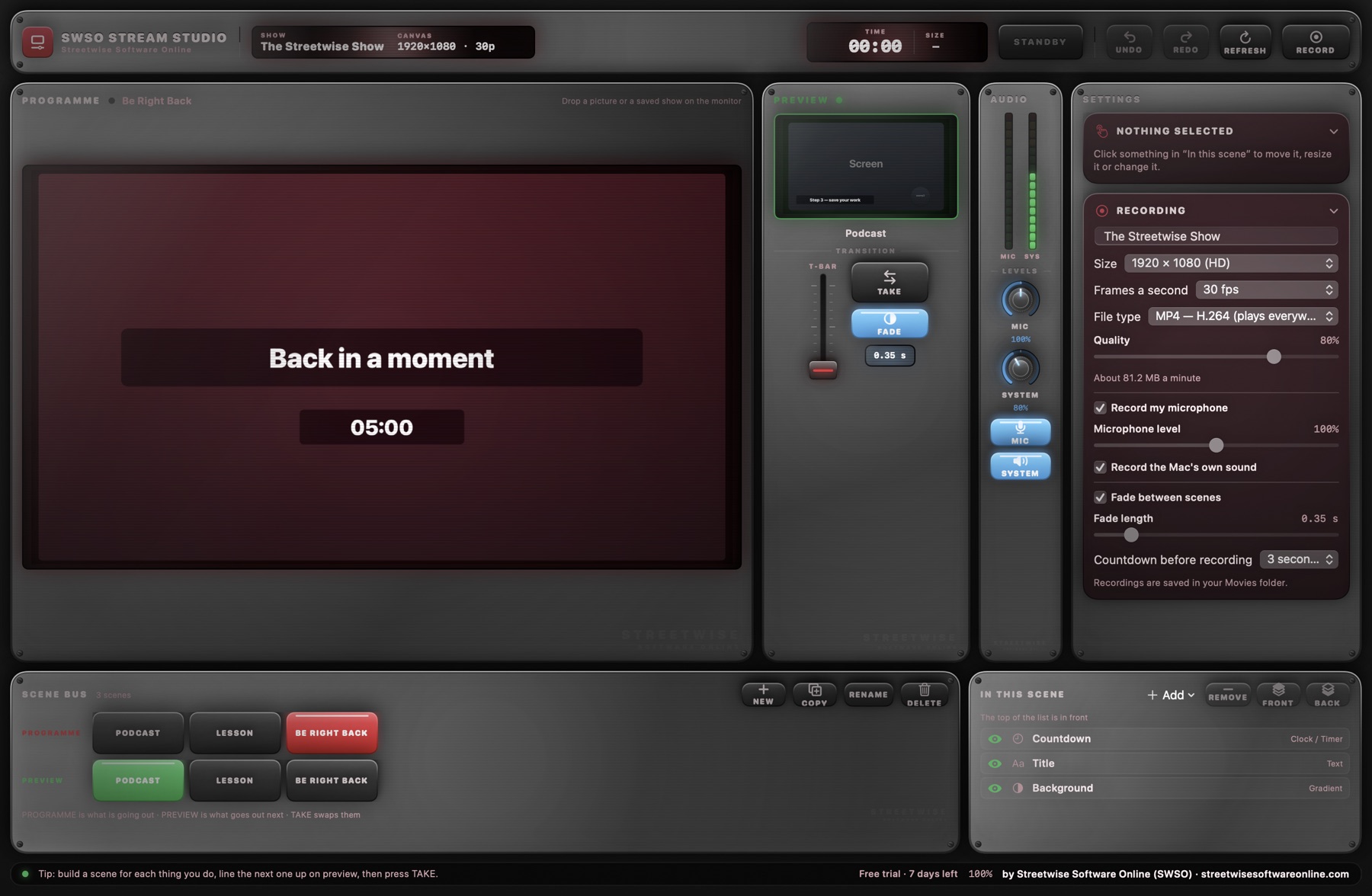
  2. Set the size and soundChoose 1080p, 720p, 4K, vertical or square, the frames a second and the file type, then turn on your microphone and the Mac's own sound. The panel tells you roughly how big a minute will be.
  3. RecordClick Record (⌘R). A countdown gives you a moment to get ready. Click scenes while you record to switch between them — it is all one recording — then click Stop and the Finder opens with the file.

Who it’s for

Anyone who needs a recording of what is on their screen, their face, or both.

A teacher speaking to camera at a laptop in an empty classroom

Teachers and trainers

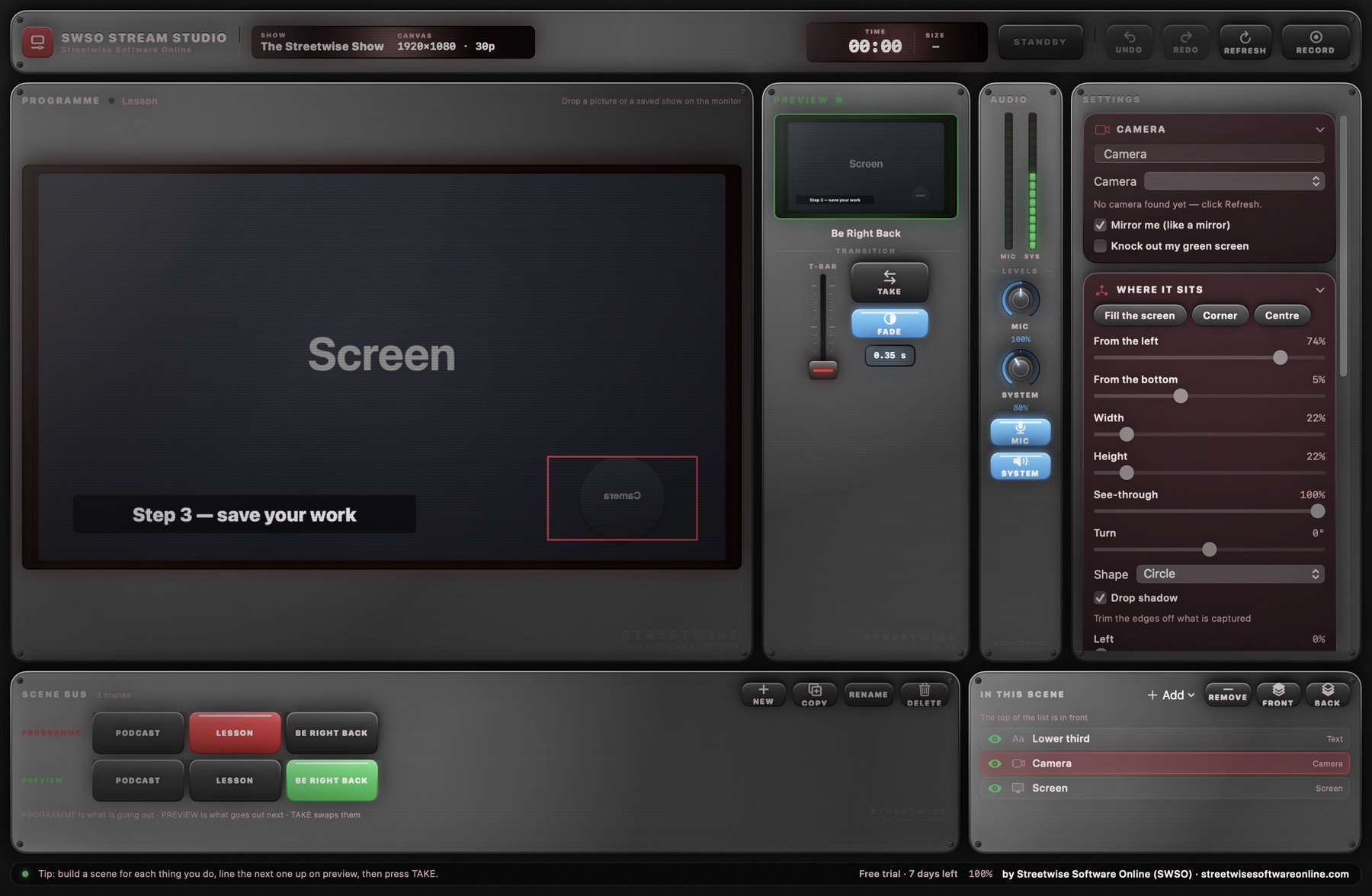
Record the lesson with your slides big, your face in a corner bubble and a lower third naming the step — then switch to a clean screen when you need it.

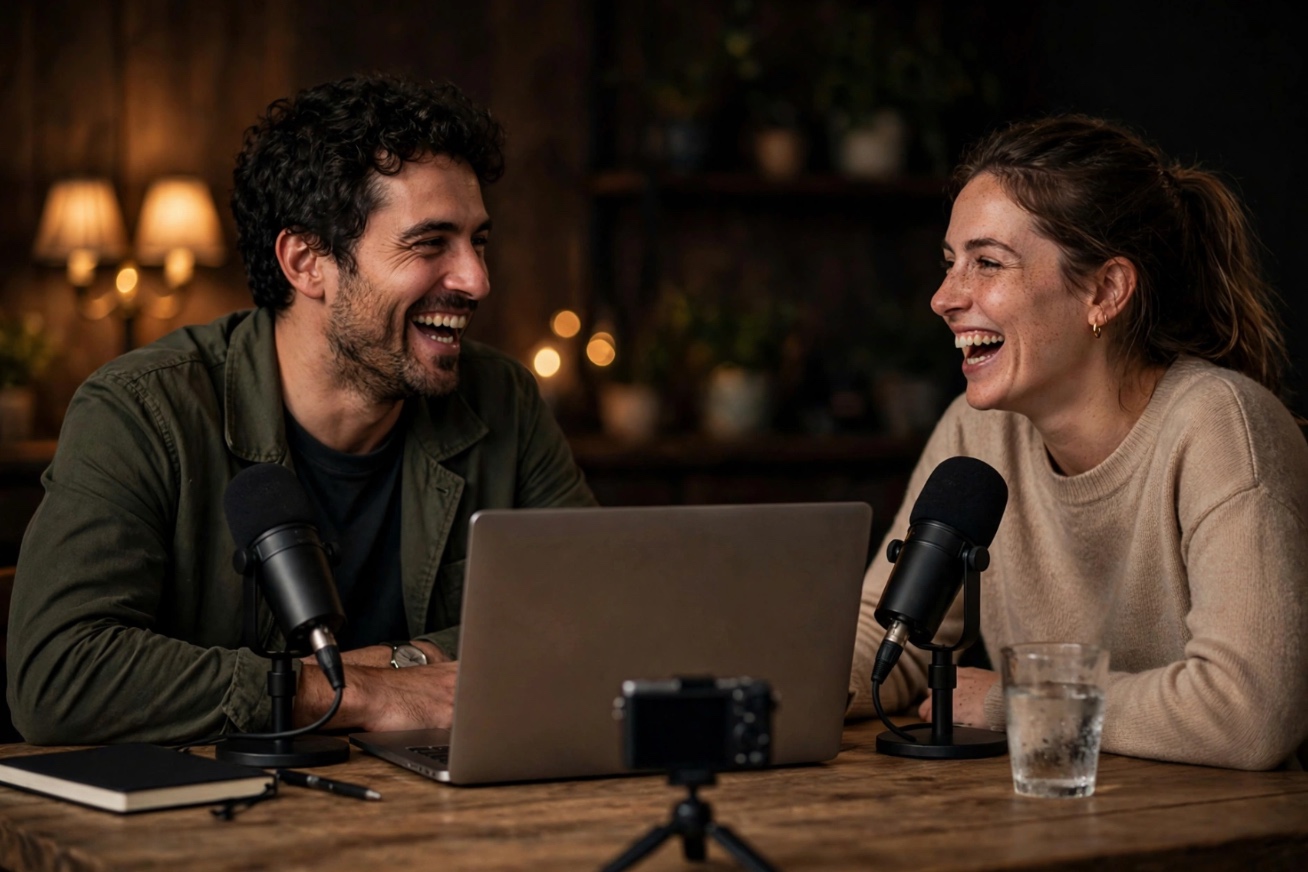
Two podcast hosts either side of a table with microphones, mid-conversation and laughing

Podcasters and show hosts

Lay out the show once, save it as a .swshow, and click between your scenes while you record. Your microphone and the Mac's own sound come along.

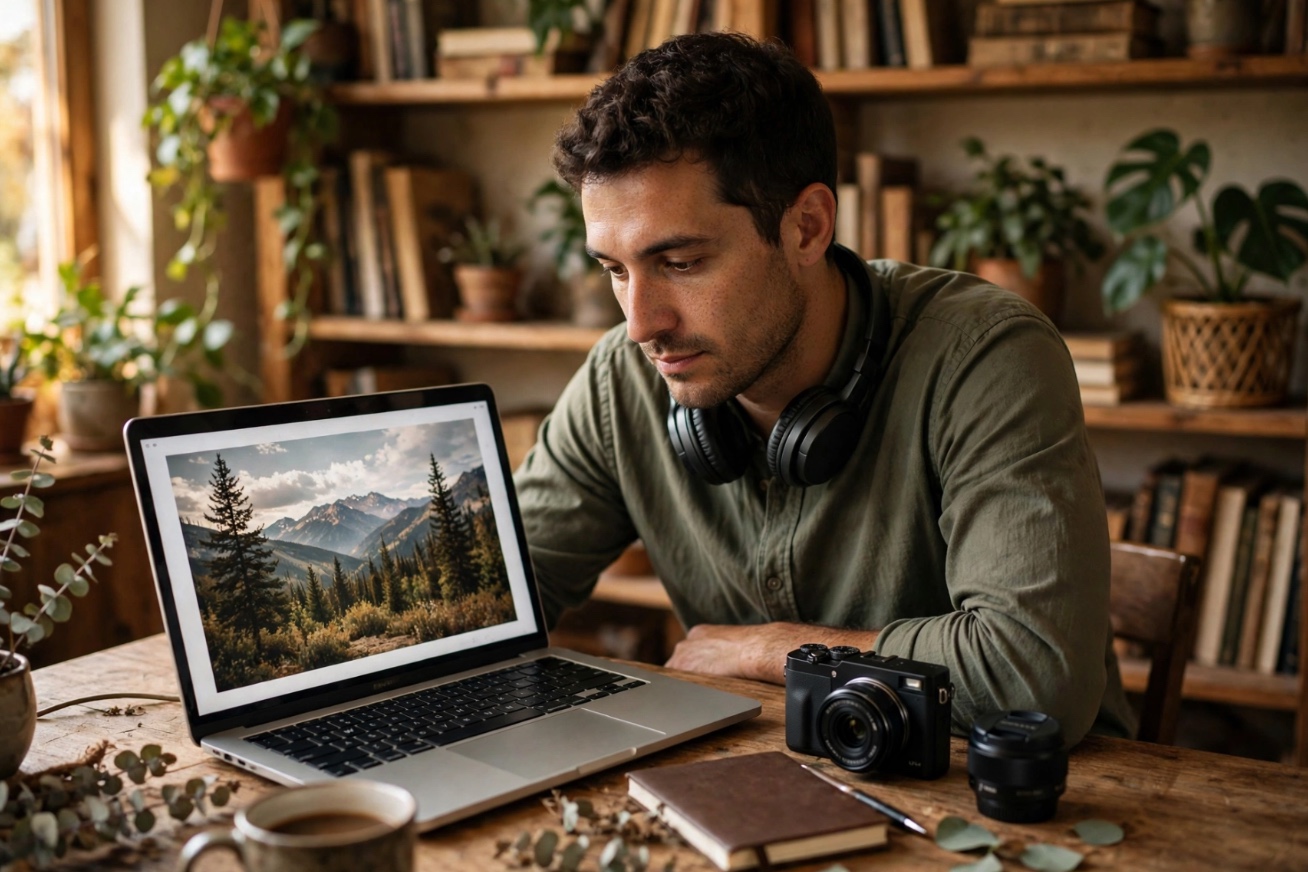
A man at a desk with a laptop and a small camera, checking a shot on screen

Creators making videos

Record in 4K, vertical for phones or square for social, with a countdown before it starts and a Be Right Back scene for the gaps.

Try it free for 7 days

  • Every feature works for 7 days from the first launch, no key and no sign-up needed
  • After the trial you keep your shows and scenes; add a license key to record again. One-time purchase — no subscription
  • Family Edition: one Family key unlocks the app and every add-on, plug-in and extra pack — no second keys
  • Privacy: everything happens on your Mac. It captures only while it is open, writes only while you record, and nothing is uploaded

System requirements

Mac
macOS 14 Sonoma or later, Intel and Apple silicon (universal). Mac only for now
Sources
Screen, One Window, Camera, Picture, Solid Colour, Gradient, Text, Clock / Timer
Layout
Layer, move, resize, crop, round or rounded masks with a drop shadow, see-through, turn, mirror, green-screen keying on the camera
Records
MP4 H.264, MP4 HEVC, MOV ProRes 422 · 1920×1080, 1280×720, 4K 3840×2160, vertical 1080×1920, square 1080×1080 · 24, 25, 30 or 60 fps
Sound
Your microphone with its own level and meter, and the Mac's own sound (with a Screen source in the scene)
Live streaming
Version 1.0 records to a file. Going live to YouTube, Twitch or Facebook is coming in the next version
Your data
Everything happens on your Mac. Nothing is uploaded
Signed
Signed and notarized by Apple
Questions

Can I go live to YouTube or Twitch?

  • Not in version 1.0. SWSO Stream Studio 1.0 records to a file; going live straight to YouTube, Twitch or Facebook is coming in the next version. In the meantime you record the show and upload it afterwards — which lets you watch it back and cut out the bits you do not want.

Where do my recordings go?

  • Into your Movies folder. When you click Stop, the Finder opens with the new file selected. The timer and the file size show at the top while you record.

Does it record sound?

  • Yes. Your microphone, with its own level slider and a meter so you can see you are being heard, and the Mac's own sound — music, a video, a call — which comes along with a Screen source in the scene.

Do I have to let macOS allow it?

  • Yes, once for each: Screen & System Audio Recording, Camera and Microphone, in Privacy & Security. When something is missing a card appears in the app with a button that takes you straight there.

Price

SWSO Stream Studio by Streetwise Software Online

Download the free trial now. One-time purchase, no subscription.

$19.99 one-time

See all SWSO software

Having a problem? Tell us and we’ll fix it.

Every computer is a little different: the macOS or Windows version, the hardware and how it’s set up can all change how an app behaves. We understand that, and we fix issues as they come in. If something doesn’t work the way it should, please don’t stay silent. Use our contact form and tell us the app, its version, your computer and system version, and what happened. Your report helps us fix it fast, for you and for everyone who uses our software.

Contact us

Product updates & bug reports

Found a bug or an issue? Report it to Streetwise Software Online with the app name, version and steps to reproduce it. We review reports and address confirmed bugs through product updates.

Read product updates and published fixes · Free trial and refund policy