From the first bid
to the final waiver
One set of projects, cost codes and contacts runs through every step, so you enter a number once and it carries forward.
1 · Bid → estimate → proposal
Log the lead
Add the prospect in Leads (CRM), then create the project (residential, commercial or heavy civil) and its contacts.
Build the estimate
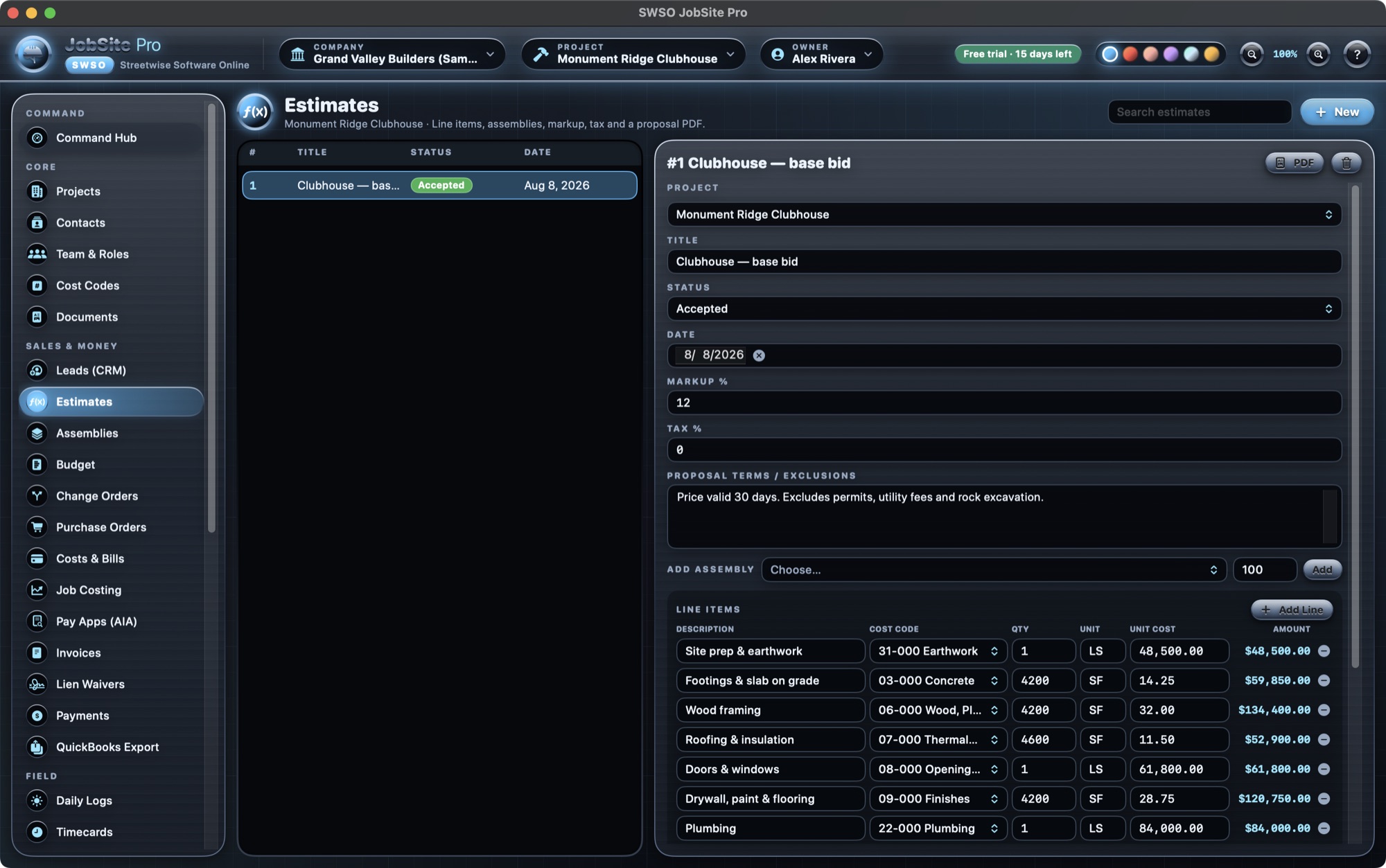
In Estimates, add lines by cost code with quantity, unit and unit cost, or pick a saved assembly and a quantity to add all of its lines at once. Set markup and tax.
Send the proposal
Add your terms and exclusions and click PDF for a client-ready proposal with the markup built into the line prices and an acceptance line.
Turn it into the job
When it's accepted, Use as Project Budget sets the budget by cost code, sets the contract to the estimate total and builds the schedule of values — so the SOV adds up exactly.
2 · Change orders
Write it up
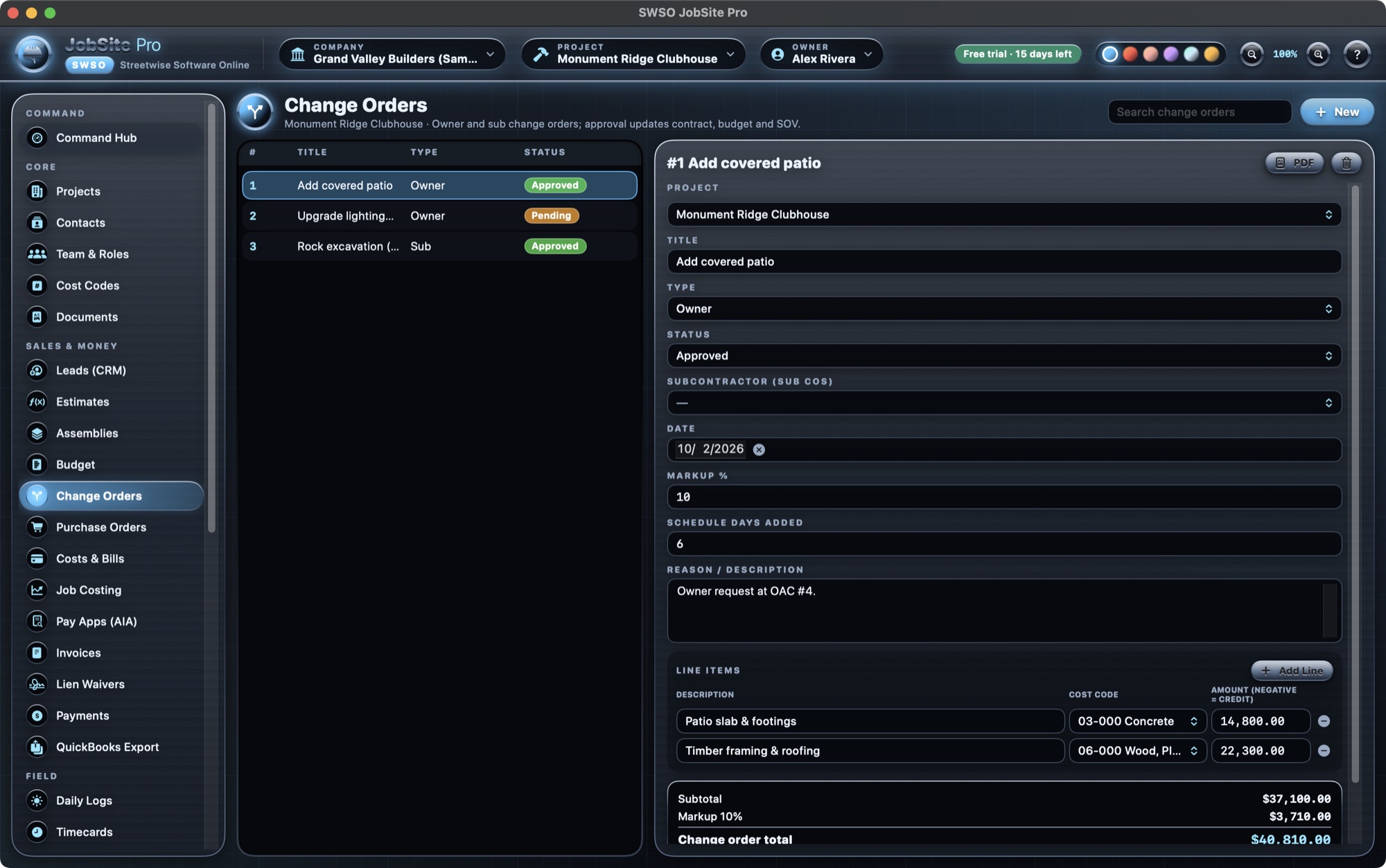
Create an owner or sub change order with line items (credits are negative), markup and any schedule days added.
Approve it
Click Approve. The contract amount, the budget and the schedule of values update on their own. Pending change orders show as exposure on the Command Hub; un-approving removes the SOV line again.
3 · Pay application with retainage
Start the period
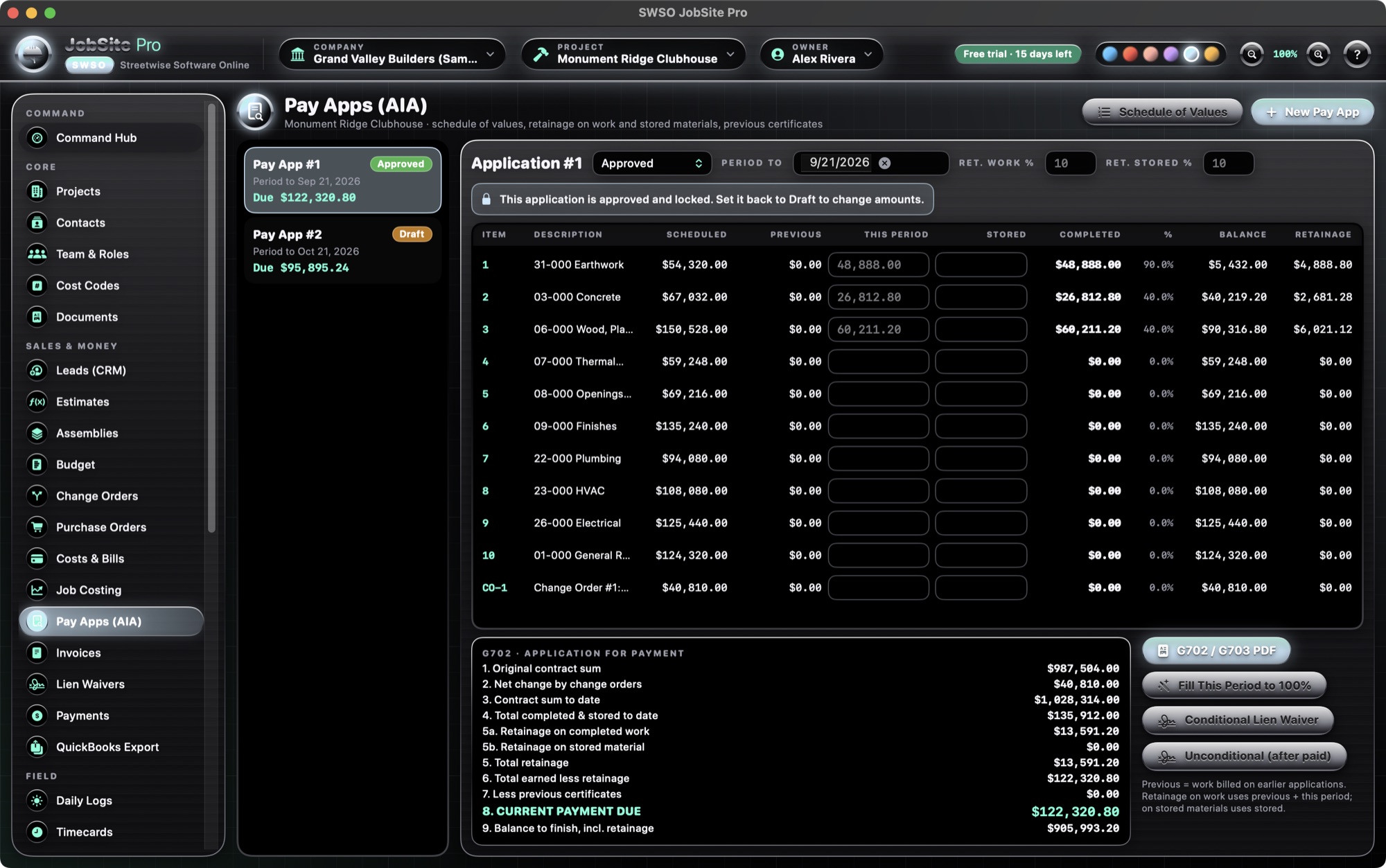
In Pay Apps (AIA), click New Pay App. Earlier applications fill the “previous” column for you.
Enter this period and stored materials
Type the work completed this period and any materials stored for each SOV line — or use Fill This Period to 100%. Set retainage for work and for stored materials separately.
Check the G702 summary
The summary shows original contract, net change orders, total completed and stored, retainage 5a/5b, less previous certificates and the current payment due.
Approve and print
Approve to lock the amounts, click G702 / G703 PDF, then make a Conditional or Unconditional lien waiver in one click.
4 · Invoice, payment & waiver
Invoice
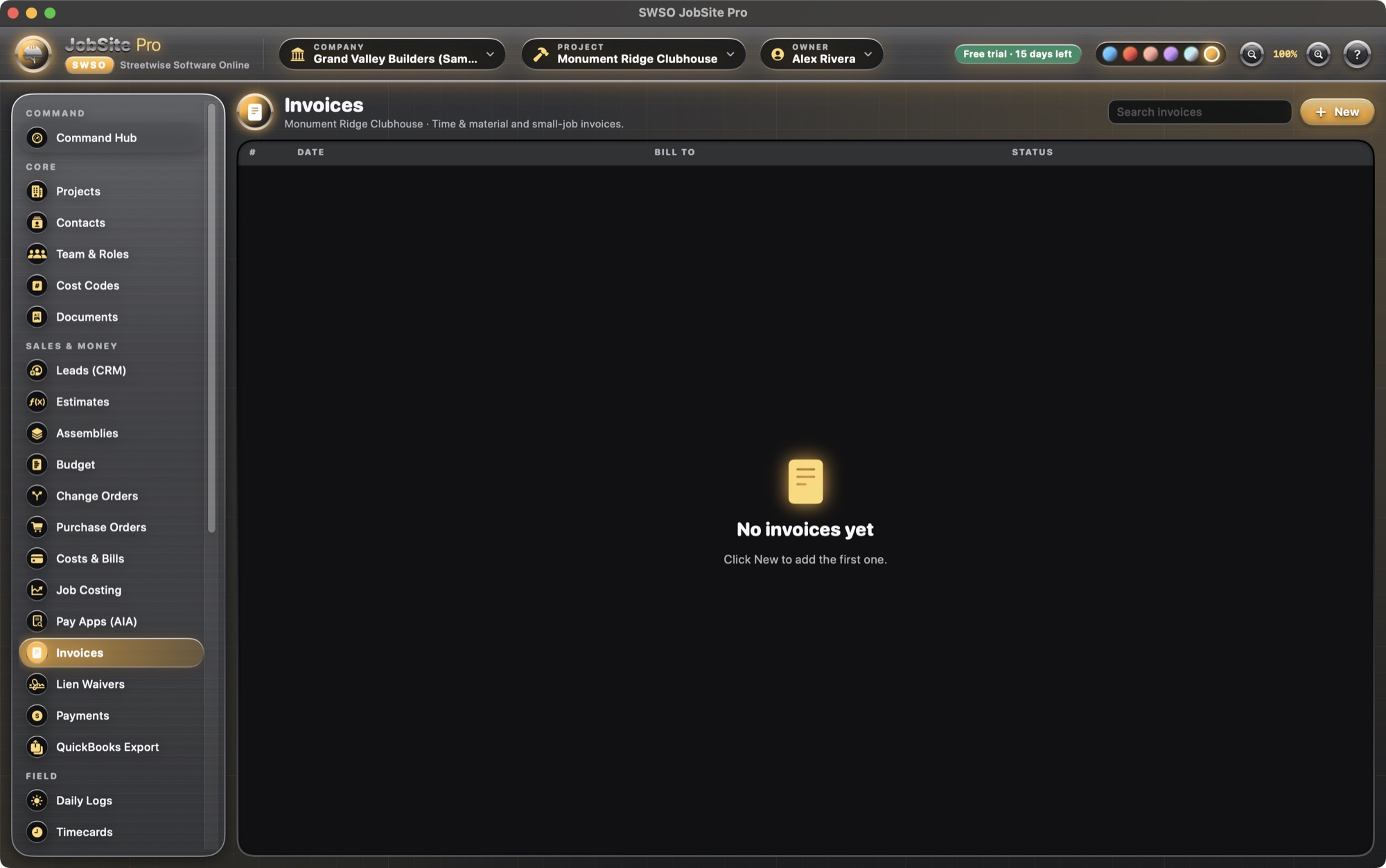
For jobs that don't use pay apps, create an invoice with tax and retainage.
Record the payment
Log payments as they come in; the Hub and reports pick them up.
Waiver and export
Issue the matching lien waiver (with a warning for states that require statutory forms) and export invoices, pay apps, bills and payments for QuickBooks.
5 · A day in the field
Daily log
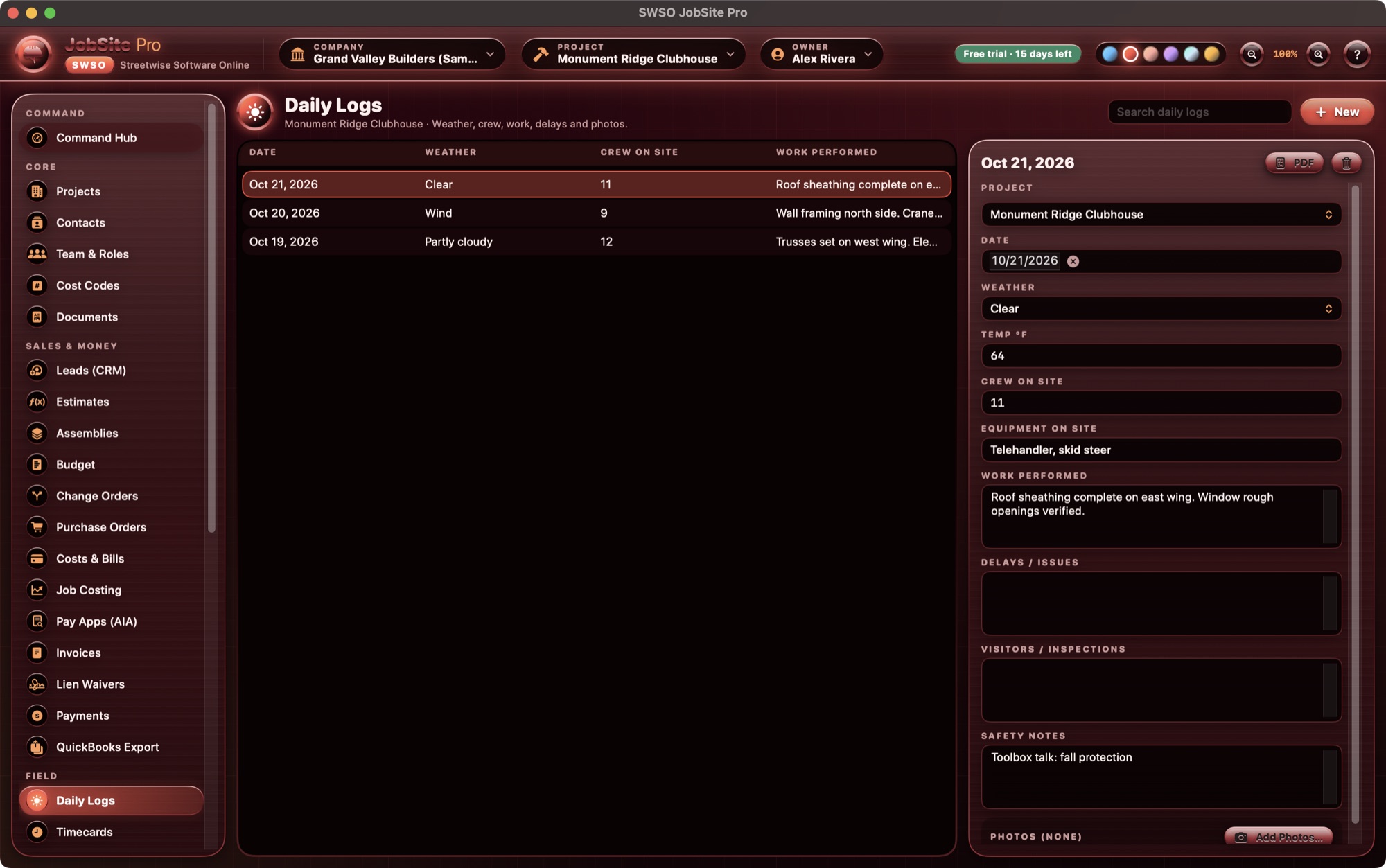
Record weather, crew and work done, and attach photos. The latest logs show in the Hub's field pulse.
Timecards
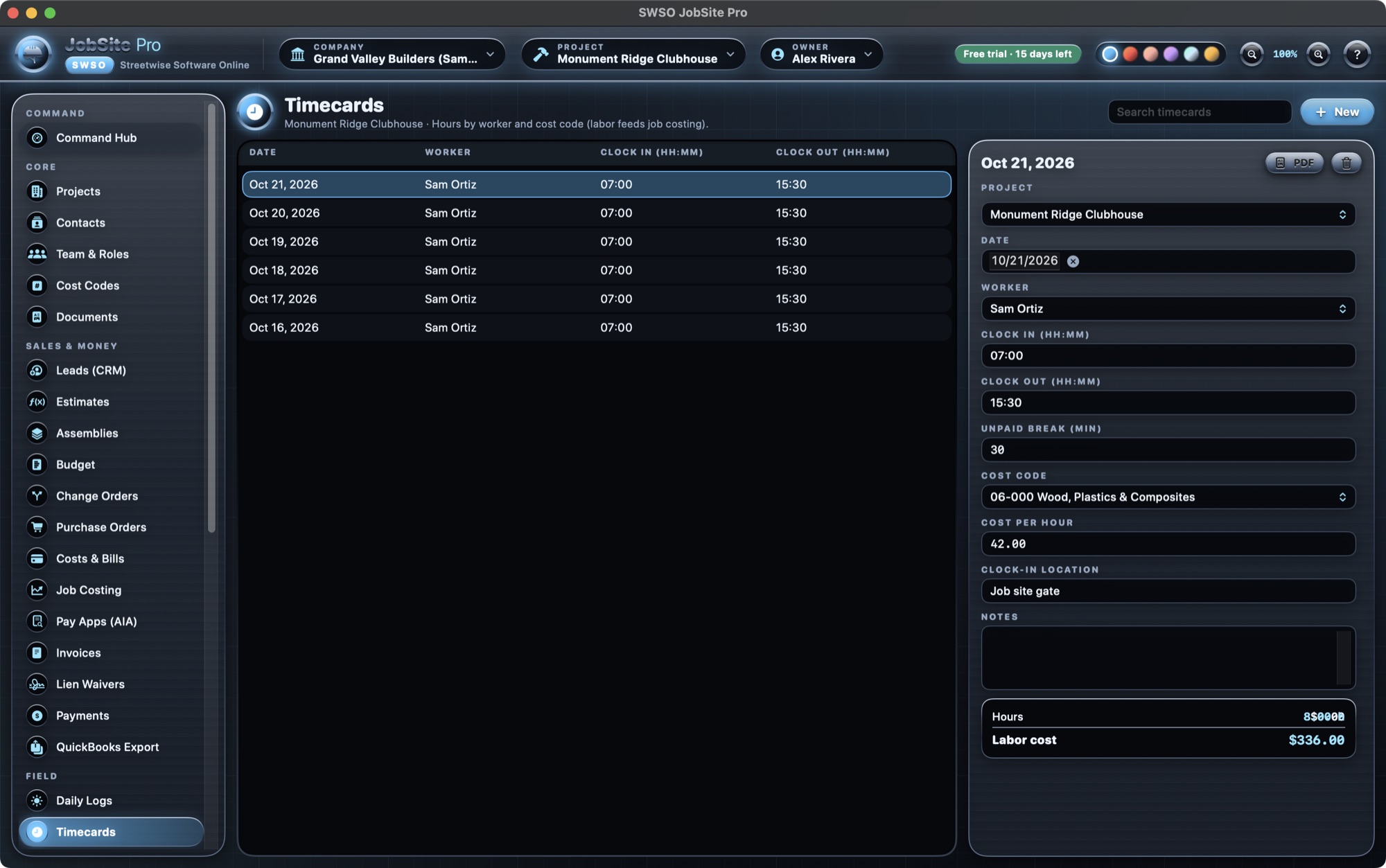
Enter hours (breaks and overnight shifts are handled). Labor cost flows into job costing.
Punch, safety and equipment
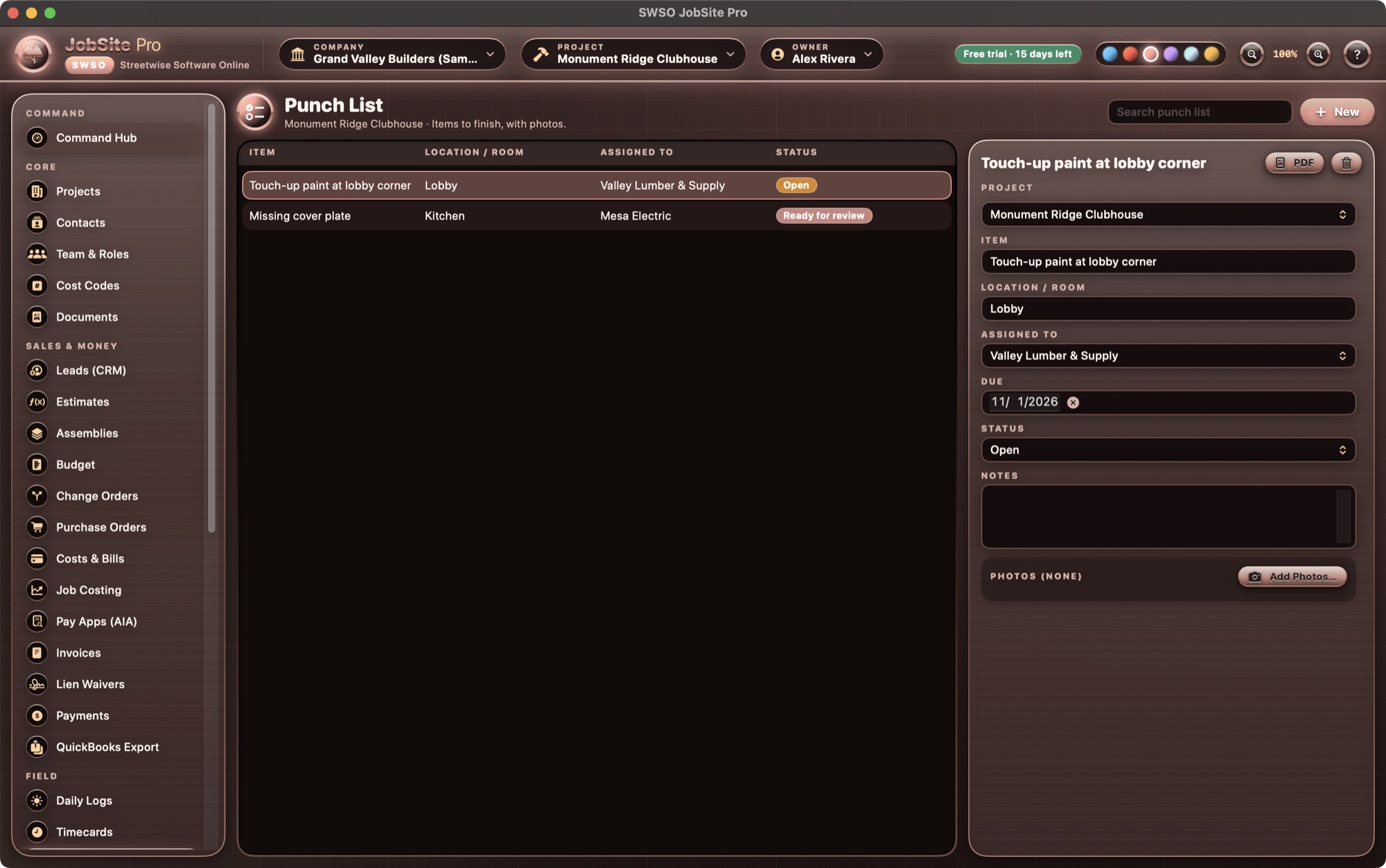
Add punch items with photos, log toolbox talks, inspections and incidents, and record equipment hours — service-due alerts appear on the Hub.
6 · Plan-sheet markups
Import the sheets
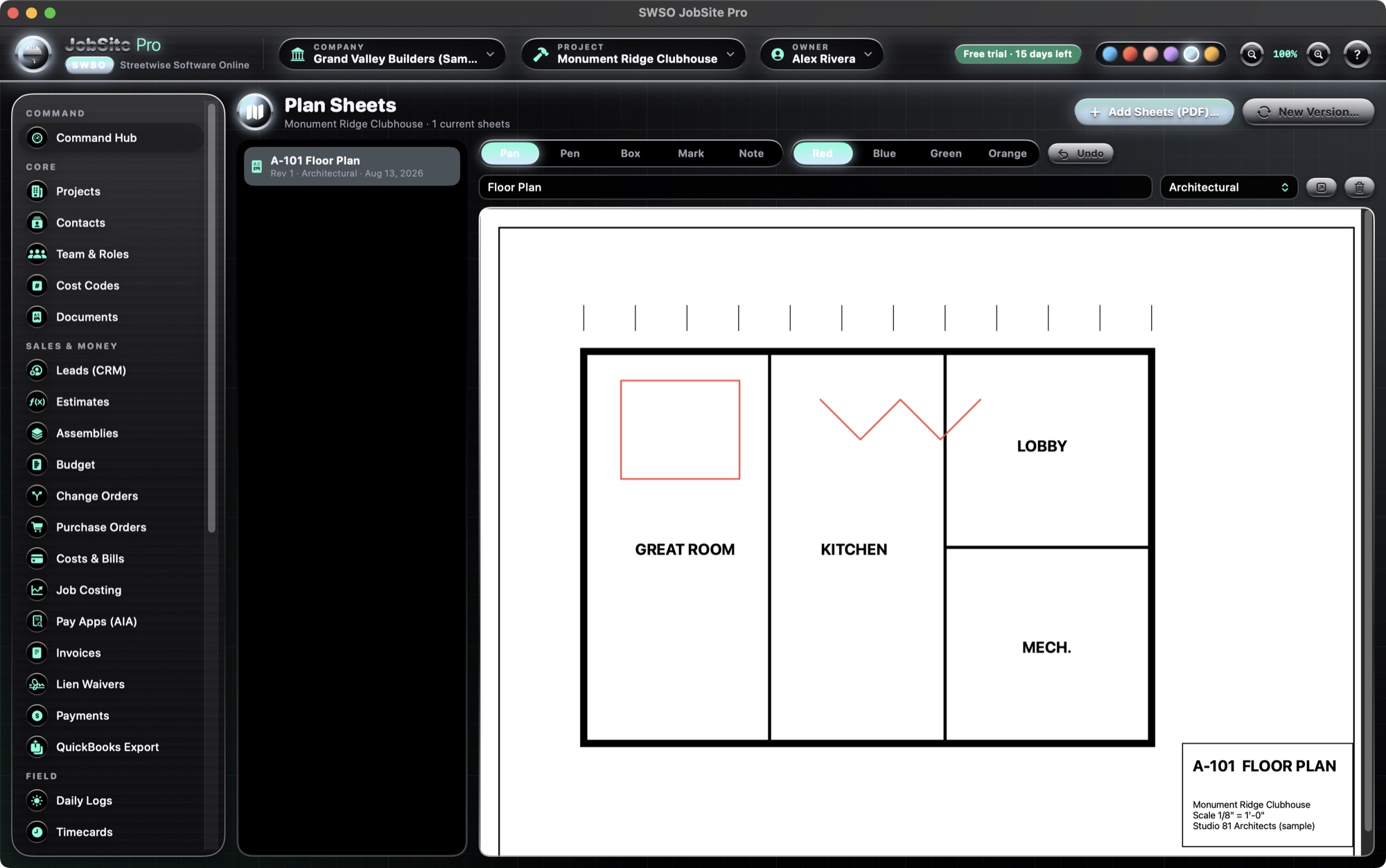
In Plan Sheets, click Add Sheets (PDF). When a revision arrives, use New Version — the old one is marked superseded.
Mark it up
Choose Pen, Box, Mark (highlight) or Note and a color (red, blue, green or orange), then draw on the sheet. Undo takes back the last mark.
It's saved in the PDF
Markups are written into the sheet's PDF, so they are there next time you open it.